CRM Activity – Incentive Capture Flow
The CRM Activity flow enables users to record product-level incentive details. This ensures that all relevant information — including product, quantity, pricing, and incentive percentage — is captured in a single, streamlined process.
CRM Activity Flow
1. From the Hello Screen, navigate to CRM Activity
2. Perform Check-In to begin the activity. Click Next to proceed to the form
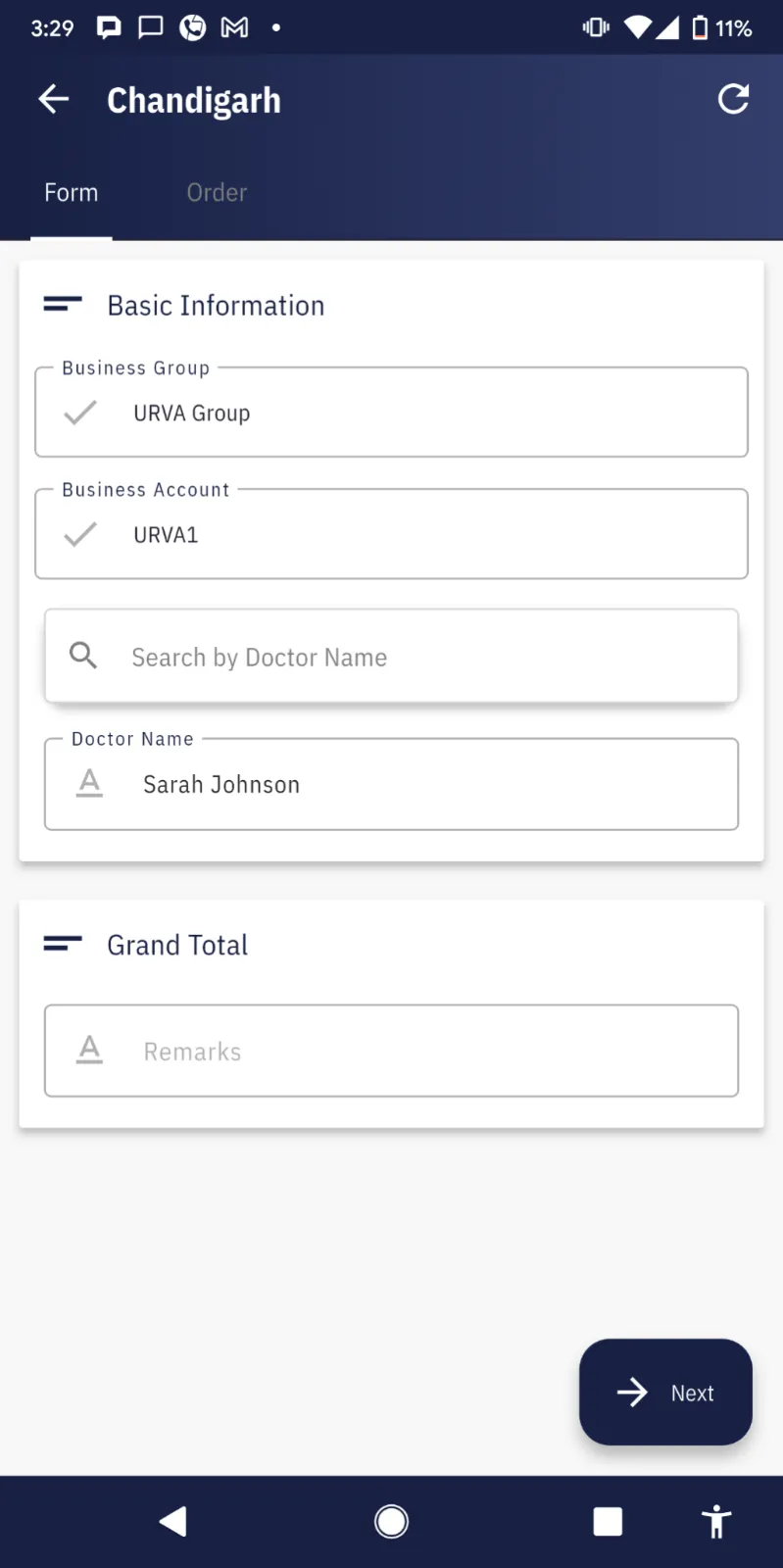
3. Select the Business Account & the Doctor Name. Click Next to continue
Adding Product & Incentive Details
4. Search and select the required product. Open the Order Tab within the CRM Activity form
6. Input the quantity for the selected product. The Unit Price will be auto-populated by the system.
7. Enter the Incentive Percentage. Up to 2 decimal points are allowed (e.g., 5.50%). Choose the month for which the incentive is applicable.
8. Each product can have different quantity, price, and incentive %
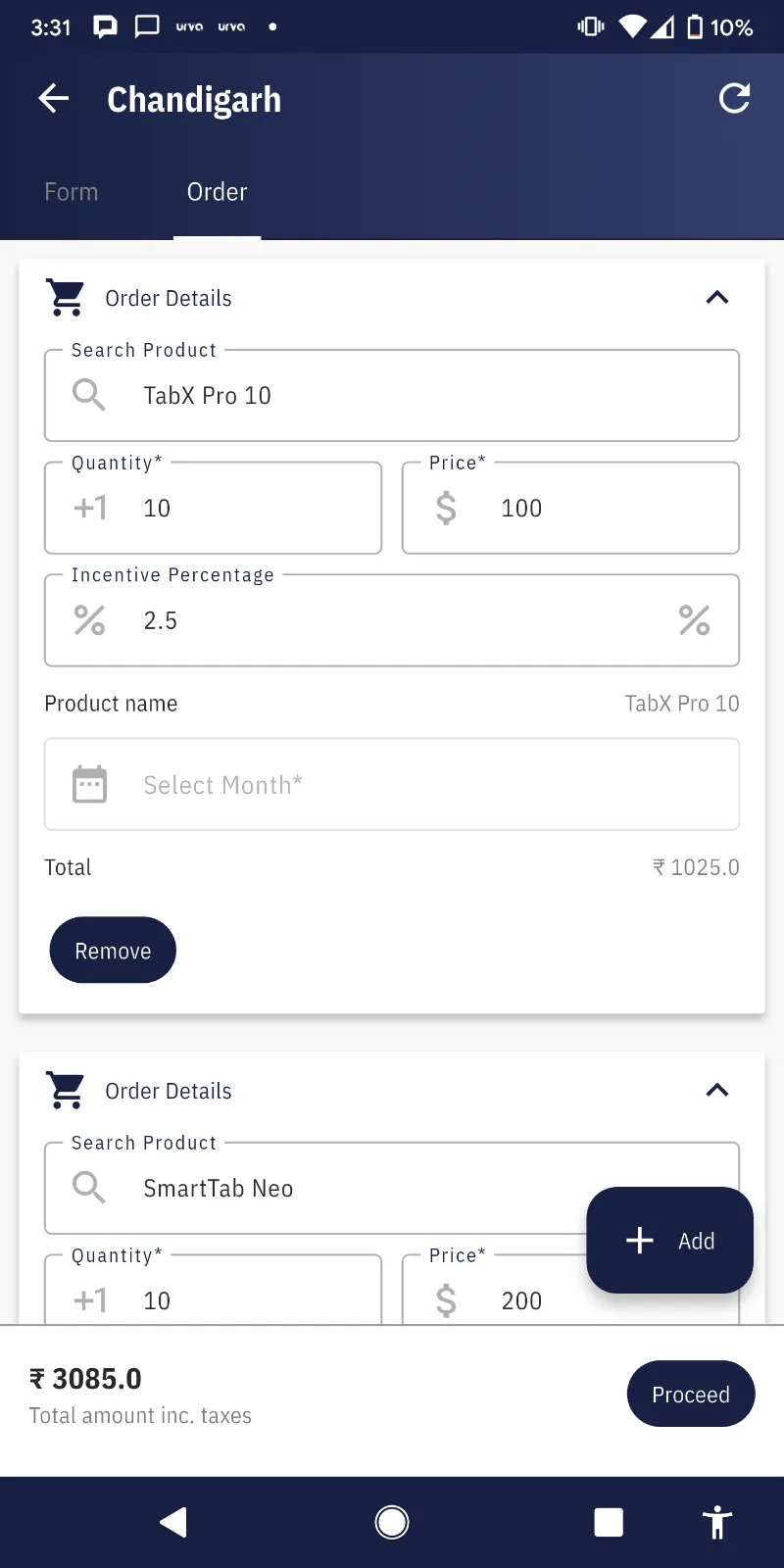
10. Review all entered details. Click Proceed to submit the CRM Activity.
11. Click on Total Amount to view the incentive details for the added products as below:
Important Notes
- Click on Total Amount to view the incentive details.
- Incentive % is product-specific and must be entered carefully.
- Month selection is required for accurate incentive tracking.
- Unit Price is system-generated and cannot be edited.
- Ensure all products are added before final submission.
Related Articles
How to download the Location capture report.
It's a new feature for BSNL SalesPort Web users. Now, they will be able to download the location capture report based on the retailer count to track how many location capture form have been completed against the retailers. To fetch/view the report, ...How to take order via order taking form?
FOS will take the order and perform the activity under the assigned Beat routes to complete the Beat Plan. To take orders, follow the steps below : Login to "BSNL Salesport" using your credentials. Click on the "Work" tab in the navigation bar. ...View assigned Routes & complete tasks
FOS can view the retailers in BSNL Salesport app as per the daily assigned routes: To view the Assigned routed, please follow the steps mentioned below: Login on "BSNL Salesport" app. Click on the "Work" tab from the navigation bar. Scroll down and ...FOS/RM/Franchise FOS Responsibilities
FOS/RM Responsibilities Dailly Activities: Mark in and Mark Out attendance View retailers View Beat Plan Take orders by retailer visit Mark in and mark out attendance: FOS need to MARK IN at the start of his shift and MARK OUT at the end of his ...Mark In/MarkOut Attendance
FOS can Mark In/Out the attendance on the Mobile platform by following thes steps: From BSNL Salesport Homepage, click on the "Mark Attendance" Option. Capture an image by selecting the "Click" button. To submit the captured image, click on the ...